Screen tearing, ghosting, and dead pixels aren’t “normal”-they’re symptoms of mismatched refresh rates, bad overdrive tuning, failing panels, or the wrong cable/port settings. Ignore them and you’ll burn hours chasing “GPU problems,” miss critical detail in games or edits, and sometimes lose resale value on an otherwise good monitor.
How I Approach Display Issues Before Changing Hardware
From my experience, most screen problems that look serious at first are often caused by small configuration details rather than actual hardware failure. I have worked on setups where users were ready to replace their monitor, but after checking things like refresh rate settings, sync options, and cable connections, the issue was resolved in minutes. That is why I always prefer to follow a simple testing order before assuming something is broken.
One habit that consistently helps is changing only one setting at a time and observing the result. This avoids confusion and makes it much easier to identify the real cause. I also recommend testing with basic tools like solid color screens or motion tests, because they reveal problems more clearly than normal use. This kind of methodical approach usually saves both time and money.
I’ve learned that rushing to replace parts can make things worse, while a calm, step-by-step check often leads to a quick and reliable fix.
After diagnosing display issues for clients across gaming rigs, office fleets, and color-critical workstations, I’ve learned most fixes are fast-if you test in the right order and don’t blindly swap hardware.
This article gives you a proven checklist to isolate the cause, apply the correct settings (VRR, V-Sync, overdrive, scaling), validate cables/ports, and decide when an RMA is the only smart move-without wasting money on guesses.
Eliminate Screen Tearing: Dial In V-Sync, G-SYNC/FreeSync, Refresh Rate Matching, and Frame-Time Stability
Most screen tearing happens because the GPU presents a new frame mid-scanout; even at 144 Hz that’s a visible ~6.9 ms window for a tear line. The common mistake is enabling V-Sync without controlling frame-time spikes, which trades tearing for inconsistent latency and judder.
- Refresh-rate matching: Set the monitor to its native max (or a stable known-good mode) in OS/GPU control panel, then cap FPS 2-3 frames below refresh (e.g., 141 FPS for 144 Hz) to keep the renderer from repeatedly hitting the V-Sync ceiling.
- VRR tuning (G-SYNC/FreeSync): Enable VRR in both monitor OSD and driver; keep V-Sync ON in the driver only (OFF in-game) so frames outside the VRR range don’t tear. Validate the VRR window/behavior using NVIDIA Pendulum Demo and watch for LFC transitions at low FPS.
- Frame-time stability: Prefer a consistent frame limiter (RTSS/driver limiter) over uncapped rendering; reduce CPU spikes (background apps, overlays) and verify frametimes with a graph-flat lines beat high averages.
Field Note: On a client’s FreeSync ultrawide, tearing persisted until we capped at 117 FPS for 120 Hz and moved V-Sync from the game to the driver, which immediately eliminated top-edge tear lines during camera pans.
Fix Ghosting & Motion Blur: Overdrive/Response-Time Tuning, MPRT Backlight Strobing, and Artifact-Free Calibration
Most “fast” gaming monitors ship with overdrive set too aggressive, trading ghosting for inverse ghosting (bright coronas) that show up even at 60-120 Hz. If your response-time setting looks sharp in menus but smears in motion, your overdrive is mismatched to the refresh range.
- Overdrive/Response-Time Tuning: Start at the middle preset, then test multiple refreshes (60/120/144/240 Hz); the correct level minimizes trailing while avoiding bright/dark overshoot. Use TestUFO Ghosting and push for “clean edges” rather than the fastest advertised “1ms” mode.
- MPRT Backlight Strobing: Enable only if you can hold stable FPS at the fixed strobe refresh (often 100/120/144 Hz); strobing reduces sample-and-hold blur but can introduce strobe crosstalk near the top/bottom of the panel. Adjust strobe phase/length (if available) to move crosstalk off-center and reduce double images.
- Artifact-Free Calibration: Disable noisy processing (dynamic contrast, motion smoothing, sharpness) and set RGB/black level correctly; wrong levels exaggerate trailing and blotchy transitions. Confirm with a gray ramp and pursuit camera check before locking settings.
Field Note: On a 240 Hz IPS, dropping overdrive from “Extreme” to “Normal” eliminated a persistent white halo behind crosshair strafes while preserving clarity once we matched the setting to 120-240 Hz operation.
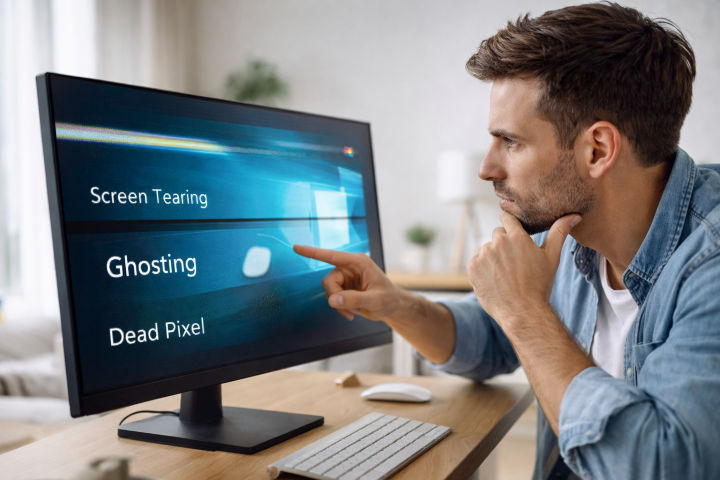
Dead vs Stuck Pixels: Safe Recovery Methods, Subpixel Diagnosis, When to RMA, and How to Prevent Panel Damage
A single “dead pixel” report is often a stuck subpixel; pressing or over-massaging the panel frequently causes permanent mura, edge light bleed, or cracked TFT traces. Treat pixel defects as an electrical/state issue first, not a mechanical one.
| Symptom | Diagnosis (Subpixel Level) | Safe Recovery / Next Step |
|---|---|---|
| Stuck pixel (colored dot) | One subpixel held on/off; verify with full-screen RGB/CMY patterns using Dead Pixel Buddy | Run rapid color-cycling 10-30 minutes, repeat after cool-down; avoid pressure and heat guns |
| Dead pixel (pure black on all colors) | Transistor/subpixel non-responsive; persists across all solid fills and input sources | No reliable “fix”; document with photo/video and check manufacturer pixel policy for RMA thresholds |
| Cluster/line of pixels | Column/row driver or ribbon fault; often changes with lid angle (laptops) | Immediate RMA/service-continued use can spread as bond fails |
Field Note: I’ve seen a client turn one stuck-red subpixel into a 2 cm bruised patch by “rubbing it out,” whereas a 20-minute color-cycle pass fixed the original defect without any new panel damage.
Q&A
FAQ 1: How do I stop screen tearing in games or while scrolling on a PC?
Screen tearing happens when the GPU outputs frames out of sync with the display’s refresh cycle. Fix it by syncing frame delivery to refresh timing:
- Enable Adaptive Sync: Turn on FreeSync/G-SYNC in your monitor’s on-screen menu, then enable it in your GPU control panel (AMD Adrenalin / NVIDIA Control Panel).
- Use V-Sync correctly: If you don’t have Adaptive Sync, enable V-Sync in-game or in the GPU driver. Expect slightly higher input latency.
- Cap FPS: Set an FPS cap at or slightly below refresh rate (e.g., 141-144 FPS for a 144 Hz panel) to reduce tearing and stutter, especially with VRR.
- Match refresh rate: Confirm Windows/macOS is set to the monitor’s native refresh rate; an incorrect setting can worsen tearing.
FAQ 2: What causes ghosting/smearing, and how can I reduce it without making it worse?
Ghosting is typically slow pixel response (common on VA panels) or aggressive overdrive causing “inverse ghosting” (bright halos). To optimize:
- Adjust overdrive/response time: In the monitor OSD, try Normal/Medium first. If you see bright trails, the setting is too strong-step it down.
- Enable motion clarity features carefully: Backlight strobing (ULMB/ELMB/MBR) can reduce motion blur but may lower brightness and can introduce flicker; it often works best at fixed refresh rates.
- Use appropriate refresh rate: Higher refresh rates typically reduce perceived blur, but ensure your FPS is stable; large frame-time swings can look like smearing.
- Check cable/format settings: Use a certified DisplayPort/HDMI cable and set the monitor to its native resolution and refresh rate. Wrong scaling or chroma settings can mimic clarity issues.
FAQ 3: I found a dead (or stuck) pixel-can it be fixed, and when should I return the display?
Dead pixels (always black/white) are usually permanent; stuck pixels (fixed on a color) sometimes recover.
- Confirm it’s a pixel issue: Display solid red/green/blue/white/black screens to verify whether it’s dead or stuck and to rule out dirt or subpixel rendering artifacts.
- Try safe unsticking methods (for stuck pixels): Run a reputable pixel-cycling video/app for 10-30 minutes. Optional: very gentle pressure with a microfiber cloth while the screen is off (riskier; stop if you see ripple damage).
- Know return/warranty thresholds: Many manufacturers allow a small number of defective pixels before replacement. Check your model’s pixel policy and retailer return window-this often determines the fastest resolution.
- Don’t attempt “repairs” on dead pixels: Persistent dead pixels typically require panel replacement; software and pressure methods rarely help and can cause additional damage.
Key Takeaways & Next Steps
Most display “fixes” fail because people chase symptoms instead of confirming the signal chain. If the artifact vanishes on a different cable/port or external monitor, stop tweaking settings-your panel is fine and the bottleneck is upstream.
Pro Tip: The biggest mistake I still see is turning on every sync/overdrive option at once. Change one variable per test, and watch for overdrive-induced inverse ghosting-manufacturers rarely mention it, but I see it constantly on “Fast” modes.
Do this immediately after closing this tab:
- Run a 60-second dead-pixel test and a UFO ghosting test, then capture a short video and a screenshot of your OSD refresh rate. Store them in a dated folder-this documentation is gold for warranty claims and returns.

Hi, I’m Ethan Pixel. At Root & Bloom, we believe that your monitor is the most important window to your digital world. From the ‘root’ of raw specs like refresh rates and response times to the full ‘bloom’ of immersive 4K gaming, I’m here to help you find the perfect panel. Let’s cut through the marketing jargon and find the display that actually levels up your setup.