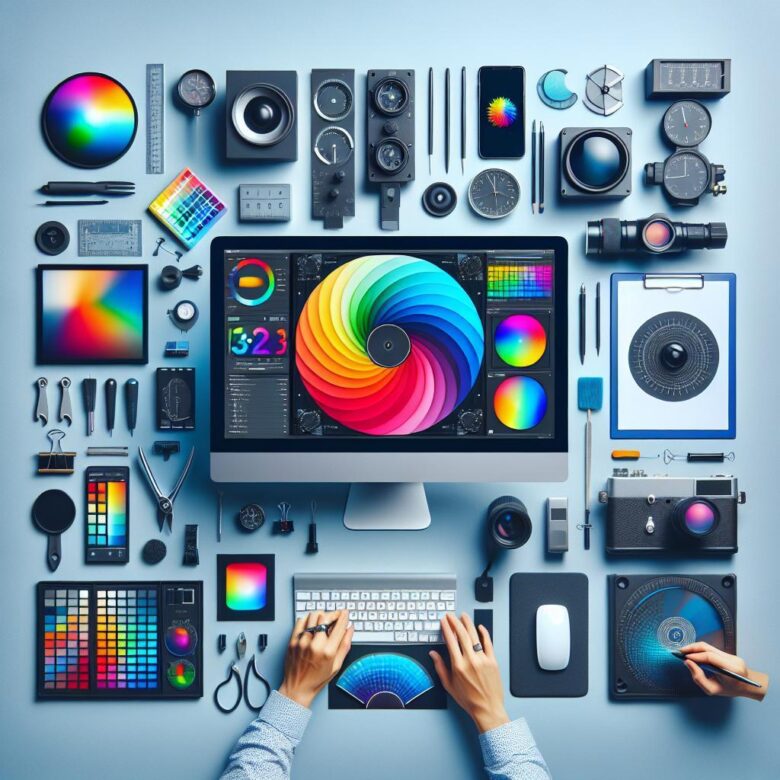
If your monitor is lying, every “perfect” edit is a gamble-skin tones shift, prints come back wrong, and clients spot inconsistencies faster than you do.
What actually made my colors finally match in real projects
After going through several calibration attempts at home, I realized that most of my mistakes weren’t technical, they were practical. I used to calibrate my monitor once, feel confident, and move on, but then I would notice small inconsistencies when comparing edits on other screens or in prints. Over time, I understood that calibration only works well when your environment stays consistent, especially lighting and brightness levels.
One thing that helped me a lot was simplifying the process and focusing on repeatability instead of perfection. I stopped chasing “perfect” numbers and started checking if my edits looked consistent across different uses, like exporting an image and viewing it on another device or under different lighting. This simple habit quickly revealed when something was off, even before it became a bigger issue like a bad print or rework.
In my experience, the best calibration is the one you can trust day after day, not the one that just looks impressive during setup.
If I could give one practical tip, it would be to revisit your calibration regularly and always double-check with real images, not just test patterns. Even a small change in room light or monitor settings can shift your perception without you noticing. Keeping things consistent, and verifying with real-world results, made a much bigger difference for me than trying to chase technical perfection every time.
After calibrating displays for photographers, designers, and video editors-and troubleshooting more “my colors don’t match” panics than I can count-I’ve seen the real cost: wasted ink, reprints, missed deadlines, and hours of revisions chasing a problem that isn’t in the file.
You don’t need a studio-grade lab to fix this at home. You need a repeatable process that targets the two culprits most people ignore: uncontrolled ambient light and incorrect display targets.
Below is the exact at-home calibration workflow to set accurate white point, gamma, luminance, and profiles-so what you see is what you deliver.
Home Monitor Calibration Workflow: Setting Target White Point, Gamma, and Luminance for Print-Ready Color Accuracy
Most “print mismatch” complaints trace back to calibrating a monitor too bright-120-160 cd/m² looks punchy on screen but forces prints to come out dark and over-saturated. Set targets first, then calibrate and profile with a colorimeter using DisplayCAL so the profile reflects your actual working conditions.
| Target | Recommended Setting | Why It’s Print-Ready |
|---|---|---|
| White Point | D65 for general/photo labs; D50 for press/proofing | Aligns monitor chromaticity with viewing light and paper white assumptions |
| Gamma / Tone Curve | 2.2 (or L* if soft-proofing for specific workflows) | Matches common RGB editing pipelines and predictable midtone behavior |
| Luminance | 80-110 cd/m² (dim room), 110-120 cd/m² (bright room) | Prevents “too-bright edit” that prints muddy; stabilizes black point perception |
Field Note: I’ve fixed repeated “prints too dark” cases simply by dropping a client’s monitor from 150 to 100 cd/m² and re-profiling, which immediately brought soft proofs and actual paper density into alignment.
Hardware vs. Software Calibration at Home: When to Use a Colorimeter, How to Run Profiling Passes, and What Each Setting Really Changes
Most “calibrated” home displays are only LUT-corrected in the GPU, leaving the monitor’s own tone response unchanged; a 1-2 dE average can still hide blown shadow detail if your black point and gamma tracking are off. Hardware calibration matters most on wide-gamut panels where the native primaries easily oversaturate sRGB content.
| Approach | Use a Colorimeter? | What Settings Really Change |
|---|---|---|
| Hardware calibration (monitor LUT) | Yes (or spectro) | Writes 1D/3D LUT in the display: white point, gamma/EOTF, black level shaping, and gamut mapping; preserves full GPU precision and reduces banding. |
| Software calibration (GPU LUT + ICC) | Strongly recommended | Loads 1D LUT into the GPU for gray balance/tono curve; ICC profile characterizes gamut/TRL for color-managed apps, but cannot fix the panel’s native gamut nonlinearity. |
Run profiling passes after calibration: one pass to hit targets (e.g., D65, 120 cd/m², gamma 2.2), then a separate verification sweep with DisplayCAL using higher patch counts (e.g., 400-1000) to expose hue bends and near-black errors. Pro Tip: I’ve fixed “mystery” banding by switching a client’s calibration from GPU-only to monitor-LUT, then re-profiling with a high patch set that revealed their default 2.4 gamma clamp in the OSD.
Fixing Common Color Inaccuracies: Eliminating Crushed Blacks, Clipped Highlights, and Banding with Test Patterns and Verification Checks
Most “calibrated” home displays still hide shadow detail below 5% gray and silently clip specular whites above ~235 (8‑bit), because brightness/contrast are set by eye instead of verified with patterns. If you can’t distinguish the 1-5% steps or the 240-254 steps in a ramp, your profile isn’t the problem-your black/white points are.
| Artifact | Test Pattern Check | Fix (Order Matters) |
|---|---|---|
| Crushed Blacks | Black level ramp: 0-10% should show separable bars (especially 1-5%). | Lower contrast first, then raise brightness until 1-2% is barely visible; re-run LUT/profile in DisplayCAL. |
| Clipped Highlights | White saturation: 235-254 (video) or 98-100% (PC) must remain distinct. | Reduce contrast or enable full-range RGB; verify GPU driver isn’t forcing limited range. |
| Banding | Grayscale gradient should be smooth with no steps, especially near midtones. | Disable “dynamic contrast,” set output to 10‑bit where supported, and avoid aggressive GPU LUT tweaks. |
Field Note: I once cleared severe sky banding on a client’s IPS panel by switching NVIDIA Output Dynamic Range to “Full” and re-profiling, because the driver had quietly forced limited-range after a TV was connected.
Q&A
Q1: Do I really need a hardware calibrator, or can I calibrate my monitor accurately with built-in tools?
For reliable color accuracy (photo/video editing, print matching, product work), a hardware colorimeter is strongly recommended. Built-in OS tools (Windows/Mac) and “visual” web patterns can improve basics (brightness, clipping, gross gamma issues) but cannot precisely measure your panel’s color response or create a truly accurate ICC profile. If accuracy matters, use a colorimeter (e.g., from Calibrite/X-Rite or Datacolor); if you only need “looks better,” OS tools are acceptable.
Q2: What target settings should I use (brightness, white point, gamma) for home calibration?
Use targets based on your primary output:
- General photo/video for web & typical viewing: White point D65 (6500K), gamma 2.2, brightness about 100-160 cd/m² (often lands around 25-50% on many monitors, but varies).
- Print-oriented work (especially in controlled lighting): White point D50 (5000K) is sometimes used for press/soft-proofing; brightness typically 80-120 cd/m² to better match paper white under viewing lights.
- Video mastering (only if you know you need it): Targets depend on standard (Rec.709/BT.1886, Rec.2020, etc.) and viewing environment; consumer displays may not fully support this workflow.
Also: disable “enhancements” before profiling (dynamic contrast, vivid modes, night light/True Tone-like features), and let the monitor warm up 20-30 minutes.
Q3: Why do my colors still look wrong after calibration (too warm, inconsistent across apps, or different from my phone/print)?
- Wrong picture mode or processing enabled: Use a neutral mode (often “Custom,” “sRGB,” or “Standard”) and turn off dynamic contrast, auto-brightness, HDR simulation, and “blue light” modes while calibrating and editing.
- ICC profile not being used consistently: Color-managed apps (Photoshop, Lightroom, many modern browsers) use ICC profiles; some apps/video players/games may ignore them, causing mismatches.
- Brightness mismatch with your room lighting: If your screen is much brighter than the room, images will appear too dark when viewed elsewhere (and prints will look dark). Adjust luminance to match your environment and be consistent.
- Monitor gamut mismatch: Wide-gamut displays can oversaturate in non-color-managed apps unless the monitor is set to an sRGB clamp or the app is color-managed.
- Expectations vs. other devices: Phones often run vivid modes and adaptive tone/brightness; prints depend on paper, ink, and viewing light. For print, use soft proofing with the printer/paper ICC profile and evaluate prints under appropriate lighting.
Summary of Recommendations
Color accuracy isn’t a “set once” task-it’s a maintenance habit. Ambient light shifts, firmware updates, and even panel aging will nudge your display off target over time.
Pro Tip: The biggest mistake I still see is calibrating at max brightness. Set your working luminance to match your room (often ~100-120 nits for a dim office), and recalibrate after the monitor has warmed up for at least 20-30 minutes-otherwise your results won’t hold.
Do one thing right now: create a named ICC profile (“D65_120nits_2.2_YYYY-MM”) and set it as the system default, then open a trusted reference image (skin tones + neutrals) in your usual editor to confirm nothing is being double-managed.

Hi, I’m Ethan Pixel. At Root & Bloom, we believe that your monitor is the most important window to your digital world. From the ‘root’ of raw specs like refresh rates and response times to the full ‘bloom’ of immersive 4K gaming, I’m here to help you find the perfect panel. Let’s cut through the marketing jargon and find the display that actually levels up your setup.