Most people buy the wrong resolution and pay twice-once at checkout, then again in blurry text, wasted GPU headroom, or frames that never reach their monitor’s refresh rate.
After years of speccing displays and tuning PCs for creators and competitive gamers, I’ve seen the same pattern: 4K chosen for “future-proofing,” 1080p kept too long for productivity, and 1440p misunderstood as a middle ground that “doesn’t matter.” The cost is real: overspending on hardware, underusing panels, and constant fiddling with scaling and settings.
This guide gives you a decision framework to pick 1080p, 1440p, or 4K based on screen size, viewing distance, GPU performance targets, and workflow-so you buy once and get the clarity, speed, and value you actually need.
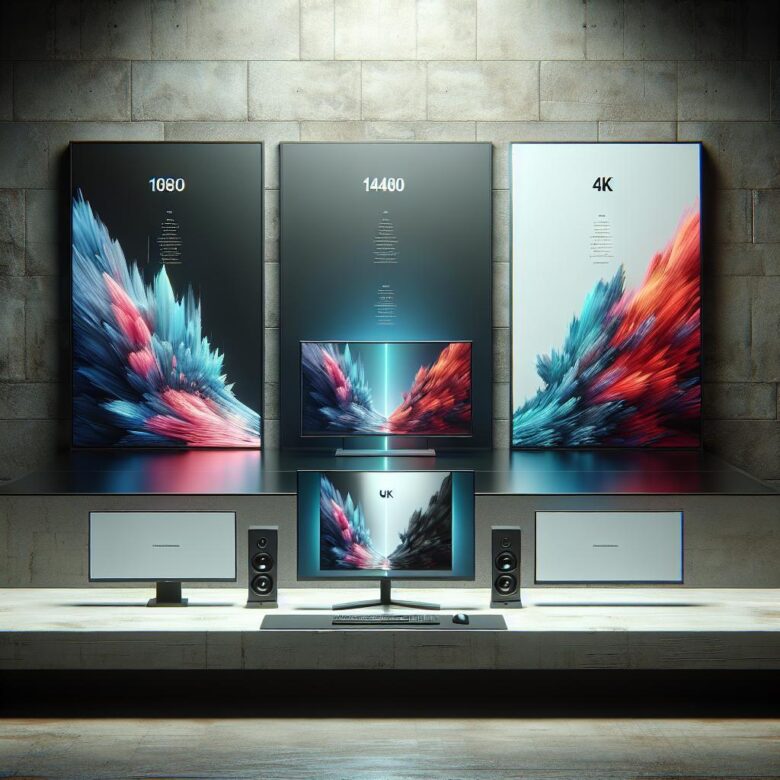
1080p vs 1440p vs 4K: A Pixel-Density & Viewing-Distance Breakdown to Pick the Sharpest Resolution for Your Screen Size
“4K” isn’t automatically sharper-perceived sharpness is capped by pixel density and how far your eyes sit from the panel. The common mistake is pairing high resolution with an oversized screen (or sitting too far back), where angular resolution hides the extra pixels.
| Screen Size | Best-Match Resolution (Sharpness/Cost Balance) | Typical “Retina-like” Distance* |
|---|---|---|
| 24-27″ | 1080p at 24″ (92 PPI) / 1440p at 27″ (109 PPI) | ~30-40″ for 1080p 24″; ~24-32″ for 1440p 27″ |
| 32″ | 1440p (92 PPI) or 4K (138 PPI) depending on desk depth | ~30-40″ for 1440p; ~20-28″ for 4K |
| 40-43″ | 4K (102-110 PPI) to avoid visible pixel structure | ~28-40″ (closer favors 4K’s edge clarity) |
Field Note: I’ve had clients swear “4K looks the same” until we measured their 38-42″ viewing distance with a tape and verified PPI/angle in DisplayCAL, then the upgrade only became obvious after moving the monitor 8-10″ closer.
Performance Reality Check: GPU/CPU Targets, VRAM Needs, and FPS Expectations for 1080p, 1440p, and 4K Gaming
4K is 4× the pixel workload of 1080p, and the common mistake is targeting “60 FPS” without budgeting for VRAM headroom-stutter usually comes from memory pressure and frametime spikes, not raw shader throughput.
| Resolution Target | Practical GPU/CPU Tier | VRAM & FPS Expectation (AAA raster, High/Ultra) |
|---|---|---|
| 1080p | Midrange GPU; CPU-limited above 120 FPS on older 6-core parts | 8 GB OK; ~90-165 FPS depending on engine and settings |
| 1440p | Upper-mid GPU; CPU still matters for 120+ FPS esports | 10-12 GB preferred; ~70-120 FPS typical, dips if RT is enabled |
| 4K | High-end GPU required; CPU rarely the limiter under 120 FPS | 16 GB strongly recommended; ~45-80 FPS native, often needs upscaling |
Field Note: After logging a client’s “random hitching” with CapFrameX, we fixed it by dropping ultra textures one notch at 1440p-VRAM usage fell below the spill threshold and frametime spikes disappeared without meaningful image loss.
Hidden Tradeoffs That Matter: Refresh Rate, HDR, Scaling, and Text Clarity When Choosing 1080p, 1440p, or 4K
Most “resolution upgrades” fail because refresh rate and HDR bandwidth get sacrificed first: 4K 144Hz 10-bit HDR can exceed what older HDMI/DP links, docks, and KVMs reliably carry. The result is a quieter downgrade to 4:2:2 chroma, reduced bit depth, or forced scaling that makes text look worse than a sharp 1440p panel.
- Refresh rate vs. resolution: 1080p/1440p more often sustain 240-360Hz with full RGB/10-bit, while 4K frequently pushes you into lower Hz or chroma subsampling unless you have DP 1.4 + DSC or HDMI 2.1 end-to-end.
- HDR and local dimming tradeoffs: Many “HDR400” monitors at any resolution are effectively SDR with a tone-map; prioritize true 10-bit pipelines and meaningful dimming over pixel count for real highlight detail.
- Scaling and text clarity: 27″ 1440p at 100% often reads cleaner than 27″ 4K at 150% in mixed-DPI apps; fine UI lines can shimmer if Windows scaling and app rendering disagree-verify with Better ClearType Tuner and per-app DPI settings.
Field Note: I’ve fixed multiple “4K looks blurry” complaints by discovering a USB-C dock was forcing 4K60 4:2:2, and switching to direct DP restored full RGB and instantly sharpened text.
Q&A
FAQ 1: Which resolution should I choose for my monitor size and viewing distance?
Match resolution to screen size and how close you sit to avoid paying for pixels you can’t reliably see.
- 24″-27″: 1080p is acceptable at 24″ (especially for high FPS), but 1440p is typically the “sweet spot” for sharper text and UI at common desk distances.
- 27″-32″: 1440p is usually ideal; 4K becomes more compelling at 32″ if you want maximum sharpness and don’t mind scaling.
- 32″+ (desk) or TV-style viewing: 4K makes the most sense, particularly for productivity and media, and for large screens where pixel density otherwise drops.
FAQ 2: What GPU performance do I need for 1080p vs. 1440p vs. 4K gaming?
Performance demand scales with pixel count; more pixels typically means lower FPS at the same settings.
| Resolution | Pixel Count (per frame) | Relative GPU Load (vs. 1080p) | Practical Expectation |
|---|---|---|---|
| 1080p | 2.07 million | 1.0× | Best for high refresh (144-240Hz+) and competitive esports settings. |
| 1440p | 3.69 million | ~1.78× | Great balance of clarity and FPS; common target for 100-165Hz with strong mid/high GPUs. |
| 4K | 8.29 million | 4.0× | Most demanding; often requires top-tier GPUs or upscaling (DLSS/FSR) to maintain high FPS. |
If you want high settings and high refresh, 1440p is typically the most achievable sweet spot; 4K is best if you prioritize image detail over maximum FPS (or plan to use upscaling).
FAQ 3: Is 4K worth it for productivity and media, and what about scaling and text clarity?
For productivity, 4K can be excellent-but only if you handle scaling correctly and your workflow benefits from the extra detail.
- Text/UI clarity: Higher pixel density makes text and edges cleaner; this is most noticeable on 27″-32″ monitors.
- Scaling: Many users run 4K with 125%-200% scaling to keep UI comfortable. This improves readability but reduces the “more space” advantage.
- Workspace vs. sharpness: 1440p often provides a strong workspace upgrade over 1080p without heavy scaling; 4K maximizes sharpness and can still provide ample workspace depending on scaling.
- Media: If you watch a lot of true 4K content (or do photo/video work), 4K is more meaningful; otherwise, streaming compression and content limitations can reduce the benefit.
The Bottom Line on A Complete Guide to Choosing the Right Resolution: 1080p vs. 1440p vs. 4K
The cleanest setup isn’t “highest resolution”-it’s the one that matches your viewing distance, GPU headroom, and target refresh rate without forcing constant scaling tweaks.
Pro Tip: The biggest mistake I still see is shopping by panel resolution and ignoring pixel density and scaling. A sharp 27″ 1440p at 165Hz often feels better than budget 4K at 60Hz-and Windows/macOS scaling at 4K can break legacy apps, blur UI, and waste screen real estate if you get the size wrong.
Do this right now:
- Measure your normal viewing distance, then use a PPI calculator to compare your top monitor sizes (24/27/32″) at 1080p, 1440p, and 4K.
- Check your GPU’s real FPS at your favorite game/app and set a minimum target (e.g., 120+ FPS or native+upscaling).

Hi, I’m Ethan Pixel. At Root & Bloom, we believe that your monitor is the most important window to your digital world. From the ‘root’ of raw specs like refresh rates and response times to the full ‘bloom’ of immersive 4K gaming, I’m here to help you find the perfect panel. Let’s cut through the marketing jargon and find the display that actually levels up your setup.