One wrong wipe can permanently cloud your monitor, scratch anti-glare coatings, or leave pressure marks that look like dead pixels. I’ve seen this repeatedly after office cleanups and “quick fixes” using paper towels, glass cleaner, or overly wet microfiber cloths-mistakes that turn a simple tidy-up into a costly panel replacement or lost productivity from eye strain and poor clarity.
This article shows the exact, screen-safe process I use to remove fingerprints, dust, and smudges without damaging LCD, LED, OLED, or matte finishes-plus what to do when streaks won’t quit.
You’ll finish with a clean, streak-free display using the right tools, the right fluid, and the right pressure-every time.
Monitor Cleaning Essentials: Safe Tools, Approved Solutions, and What to Avoid (Alcohol, Ammonia & Paper Towels)
Most monitor damage I see isn’t from impact-it’s from “quick cleans” that strip anti-glare coatings or force liquid past the bezel. Even a small amount of wicking can create bright-edge blooming or permanent pressure marks on IPS/OLED panels.
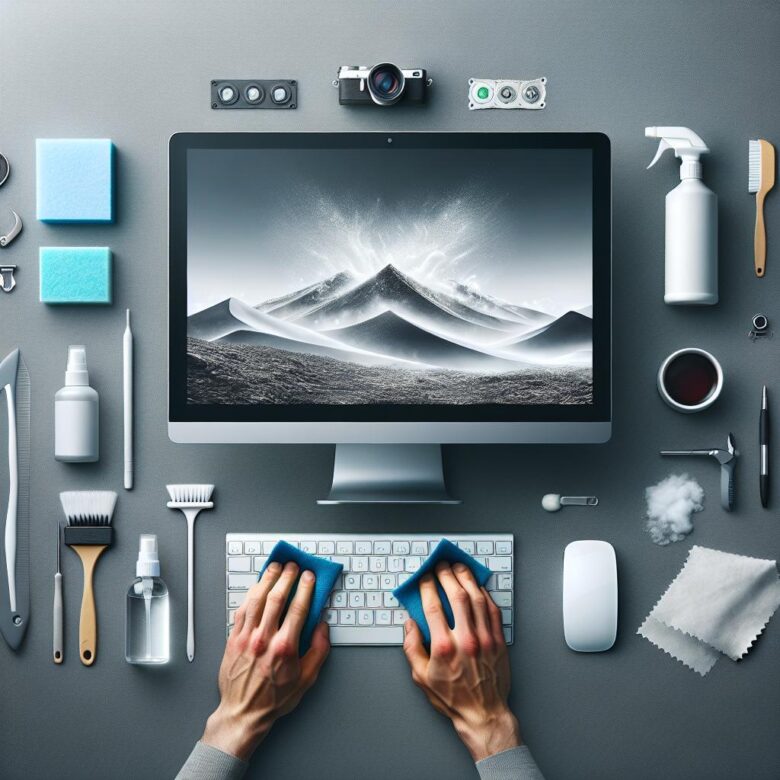
- Safe tools: A clean microfiber cloth (tight weave, lint-free), a soft anti-static brush for bezels/vents, and compressed air used in short bursts at an angle (never into panel seams).
- Approved solutions: Screen-specific cleaners or distilled water; for oily fingerprints, lightly dampen the cloth (not the screen) with distilled water plus a drop of mild, non-lotion dish soap, then follow with a dry microfiber pass.
- What to avoid: Alcohol (especially on matte/AR coatings), ammonia (clouding and delamination risk), and paper towels/tissues (wood pulp fibers cause micro-scratches); also avoid household glass cleaners and any spraying directly onto the panel.
Field Note: I once traced a client’s “mysterious vertical haze” on a Dell Ultrasharp to repeated paper-towel use-confirmed in minutes by viewing a solid gray test pattern in EIZO Monitor Test.
Step-by-Step Monitor Cleaning Method: Power-Down, Dust Removal, Smudge Lifting, and Streak-Free Drying for LCD/LED/OLED Screens
Most “screen damage” I see in service labs comes from dry-wiping grit into the polarizer and using alcohol/ammonia that partially strips the anti-glare layer. Always power down, unplug, and let the panel cool for 5 minutes so heat doesn’t flash-dry cleaner into streaks.
- Power-down & prep: Turn off the monitor, disconnect power, and use a bright full-screen test pattern (e.g., DisplayCAL test images) to spot residue; remove rings/watch bands to prevent edge chips.
- Dust removal: Use a clean microfiber or a hand air blower to lift loose particles first; never use canned air at close range (propellant spotting) and avoid paper towels (wood-fiber abrasion).
- Smudge lifting & streak-free drying: Lightly mist distilled water (or 70/30 distilled water to white vinegar) onto the cloth-not the panel-then wipe with minimal pressure in straight passes; follow immediately with a second dry microfiber to “buff” until drag disappears, especially on OLED where coatings mark easily.
Field Note: I once cleared persistent “vertical banding” complaints on a client’s IPS display that turned out to be dried cleaner streaks-two-cloth drying and no-spray-on-panel fixed it in under 2 minutes.
Troubleshooting Streaks and Spots: Fixing Fingerprints, Haze, and Persistent Marks Without Scratching or Damaging Anti-Glare Coatings
Most “permanent” monitor streaks are cleaner residue: excess liquid wicks to the edge and dries into a haze that mimics coating damage. The fastest way to ruin an anti-glare (AG) layer is scrubbing a localized mark with pressure, which can burnish the micro-texture and leave a shiny patch.
- Fingerprints / skin oils: Lightly dampen a clean microfiber with distilled water, wipe in one direction, then immediately follow with a dry microfiber to lift emulsified oils; if the print persists, use a 70% isopropyl alcohol solution sparingly (never spray the panel) and finish with a water-only pass to prevent alcohol spotting.
- Haze / streaking after cleaning: This is usually detergent or tap-mineral film; re-wipe with distilled water only, using a “wet pass” then a “dry buff” with zero added pressure, and rotate to a fresh cloth quadrant every few strokes.
- Persistent marks that won’t move: First confirm it’s not content: display a solid gray/white test pattern with EIZO Monitor Test; if the mark remains, treat as potential coating abrasion or panel defect-stop polishing and document it under angled light for warranty.
Field Note: On a client’s Dell UltraSharp, a “scratch” vanished after I re-cleaned with distilled water and a second dry cloth-what they’d actually done was leave a citrus-based cleaner film that only showed under office downlights.
Q&A
Q1: What’s the safest step-by-step method to clean an LCD/LED monitor without causing scratches or streaks?
A:
- Power down and unplug the monitor (reduces electrical risk and makes smudges easier to see).
- Let the screen cool for a few minutes if it was warm.
- Remove loose dust first with a clean, dry microfiber cloth using very light pressure (dust can scratch if you start wet).
- Lightly dampen a second microfiber cloth with distilled water (cloth should be barely damp, not wet).
- Wipe gently in straight passes (top-to-bottom or side-to-side). Avoid pressing-let the cloth do the work.
- Dry immediately with a dry microfiber cloth to prevent streaks and edge seepage.
- Clean the bezel/stand last so you don’t transfer oils back onto the screen.
Q2: Can I use alcohol, glass cleaner, disinfecting wipes, or paper towels on my monitor?
A: In most cases, avoid them:
- Ammonia-based glass cleaners (common in window sprays) can damage anti-reflective/anti-glare coatings and cause hazing.
- High-concentration alcohol (e.g., strong isopropyl) and disinfecting wipes can degrade coatings and leave permanent marks, especially on matte screens.
- Paper towels/tissues can be abrasive and shed fibers, increasing scratch risk.
Best practice: Use distilled water for routine cleaning. If you need more cleaning power, use a screen-safe cleaner specifically labeled for LCD/LED monitors and apply it to the cloth-not the screen.
Q3: How do I remove fingerprints or oily smears without damaging the coating, and what common mistakes should I avoid?
A:
- For fingerprints/oil: Use a microfiber cloth lightly dampened with distilled water. If residue persists, use a monitor-approved screen cleaner on the cloth and wipe gently, then buff dry with a clean microfiber.
- Avoid spraying directly onto the screen: Liquid can seep into the panel edges and cause internal damage or staining.
- Avoid heavy pressure: Pressing can create “bruising” (temporary or permanent pressure marks) on LCD panels.
- Don’t scrub grit: Always dust first; rubbing trapped particles is a primary cause of micro-scratches.
- Don’t clean while the screen is hot: Higher evaporation increases streaking and can bake on residue.
Expert Verdict on Step-by-Step Guide: How to Properly Clean Your Monitor Without Damaging the Screen
Pro Tip: The most expensive mistake I still see is using “screen cleaner” kits that contain alcohol, ammonia, or citrus solvents-fine on glass, disastrous on anti-glare and OLED coatings over time. If you only lock in one habit, make it this: never spray liquid onto the panel; apply it to the cloth, keep it barely damp, and stop the moment you feel drag.
Right now, set up a dedicated monitor-cleaning kit: two clean, lint-free microfiber cloths (one for dust, one for finish) in a sealed bag, plus distilled water in a small spray bottle labeled “DISPLAY ONLY.”
- Add a recurring calendar reminder for a light dusting every 1-2 weeks.

Hi, I’m Ethan Pixel. At Root & Bloom, we believe that your monitor is the most important window to your digital world. From the ‘root’ of raw specs like refresh rates and response times to the full ‘bloom’ of immersive 4K gaming, I’m here to help you find the perfect panel. Let’s cut through the marketing jargon and find the display that actually levels up your setup.